Showing posts with label Tech Tips. Show all posts

Monday, November 17, 2008

The Best Solution to Read FLAC & .cue is Using FooBar2000

                  11-17-2008 9-42-30 PM

FooBar2000 is the only App to read files which divided into FLAC ans .cue. It has Flac and cue support.

If you need to play a old dead song collections which has been divided up into separate FLAC files. In this type of file collections some of the tracks obviously meant to join straight on to others but some aren't. Because besides the FLAC files there is a .cue files are included.

Using FooBar2000 these both the file types can be played.

Main Features

  • Supported audio formats: MP3, MP4, AAC, CD Audio, WMA, Vorbis, FLAC, WavPack, WAV, AIFF, Musepack, Speex, AU, SND... and more with additional
  • Gap less playback
  • Full unicode support
  • Support for ripping Audio CDs as well as transcoding all supported audio formats using the Converter Component
  • Full Replay Gain support
  • Customizable keyboard shortcuts
  • Open component architecture allowing third-party developers to extend functionality of the player

Friday, August 15, 2008

Exchange your Outlook and gmail Contacts

This is a tip for hard workers!!

Most of the people use alt+tab between the Gmail inbox and the Outlook inbox searching for employees contacts at work. I think this will be a help tip for your to make your work easier.
First start exchanging Outlook contacts to Gmail account.

  • Click on File > Import and ExportSelect "Export to a file" > Click Next
  • Choose either comma-seperated value option > Click Next
  • Browse to and select your contact folder > Click Next
  • Choose the Browse button and pick a location for the file ( Give a name with the .csv extension ) > Click OK > Click Next
  • Verify the action > Click Finish

After the file exporting is done you can add those contacts to the Gmail account.


  • Open Gmail
  • Click Contacts
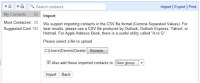
  • Choose Import at the top right
  • Click Browse and navigate to and select the file that you have just exported
  • Add a new group by choosing "Also add these imported contacts to" before you click Import.
  • Once the file is imported you will see a summary of the contacts you have jus added.

Now turn the process by moving your Gmail contacts to Outlook. On the Gmail Contacts page,


  • click Export in the top right
  • choose to export just your contacts or your contacts and Gmail's suggested contacts
  • select "Outlook's CSV format (for importing into Outlook or other applications)," and click the Export button.
  • The file is named "contacts.csv" automatically.
  • Select the Save File button (it's chosen by default) > click OK
  • The list will be saved in your Downloads folder (or whichever folder you've picked as your default)
  • Open Outlook, click File > Import and Export > Import from another program or file > Next.
  • Choose the appropriate comma-separated-value option > click Next
  • Click the Browse button, navigate to and select the .csv file you just created
  • Pick one of the options regarding duplicate entries (the default is "Allow Duplicates to be created") > click NextChoose the destination folder Verify the action, and click Finish.

Any addresses with unrecognizable names will be listed first with only the e-mail address, but other contacts will appear alphabetically by last name.

So enjoy at your work by reducing you work load..... Hope this will help you !!